░░░░░░░░
░░░░░░░░
░░░░░░░░
░░░░░░░░
░░░░░░░░
░░░░░░░░

MohCitrus translates Discord messages so people who speak different languages can talk to each other. It works out which language a message is in by itself and supports 108 languages and regional variants.
Two ways to use itTurn on auto-translate in a channel and every message is translated as it’s posted. Or translate on demand: react with a flag, type /translate, or right-click any message.
Up and running in about a minute.
Add MohCitrus using the invite link on our home page. Keep Read Messages, Send Messages and Embed Links switched on — without Embed Links, translations can’t display properly.
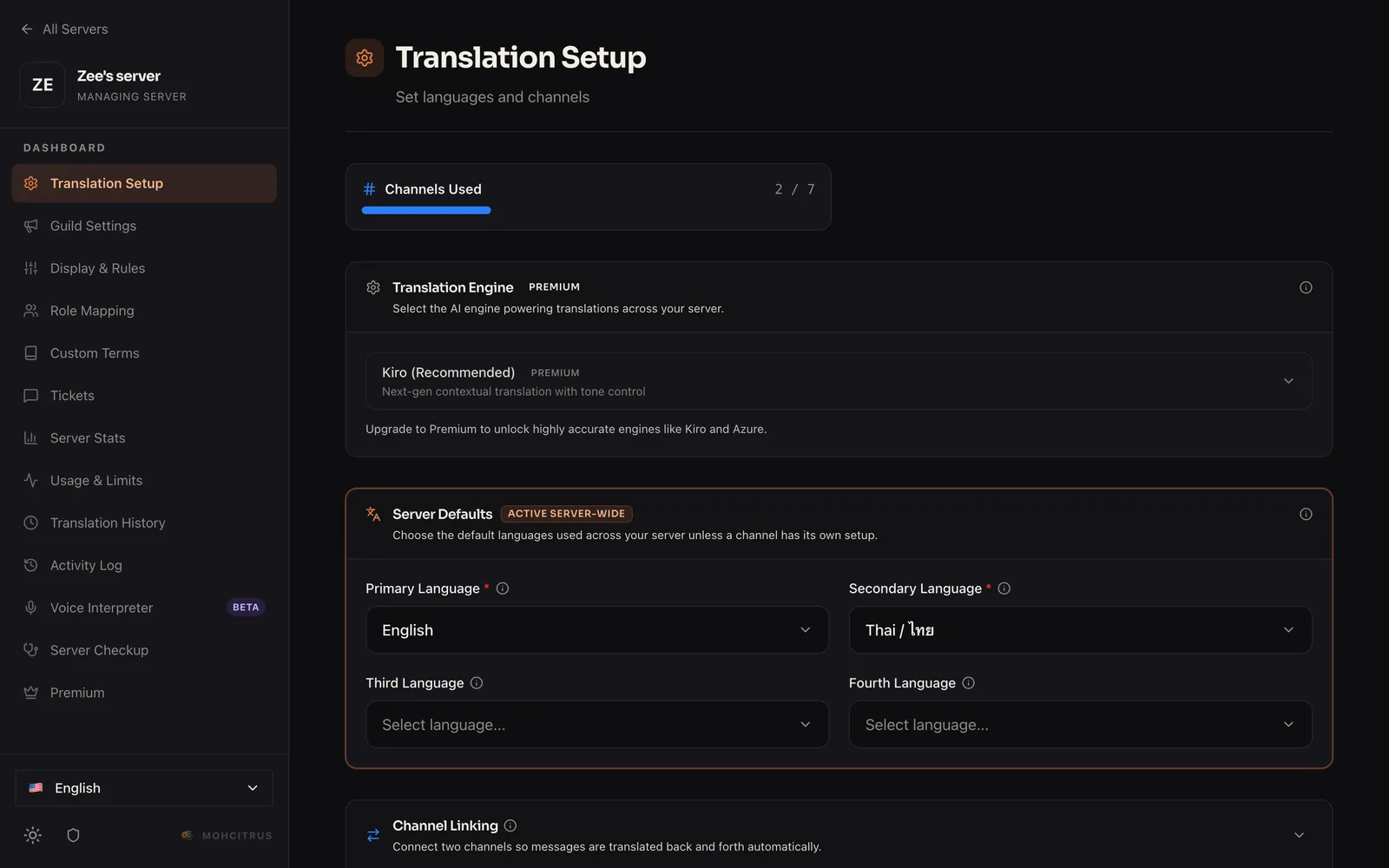
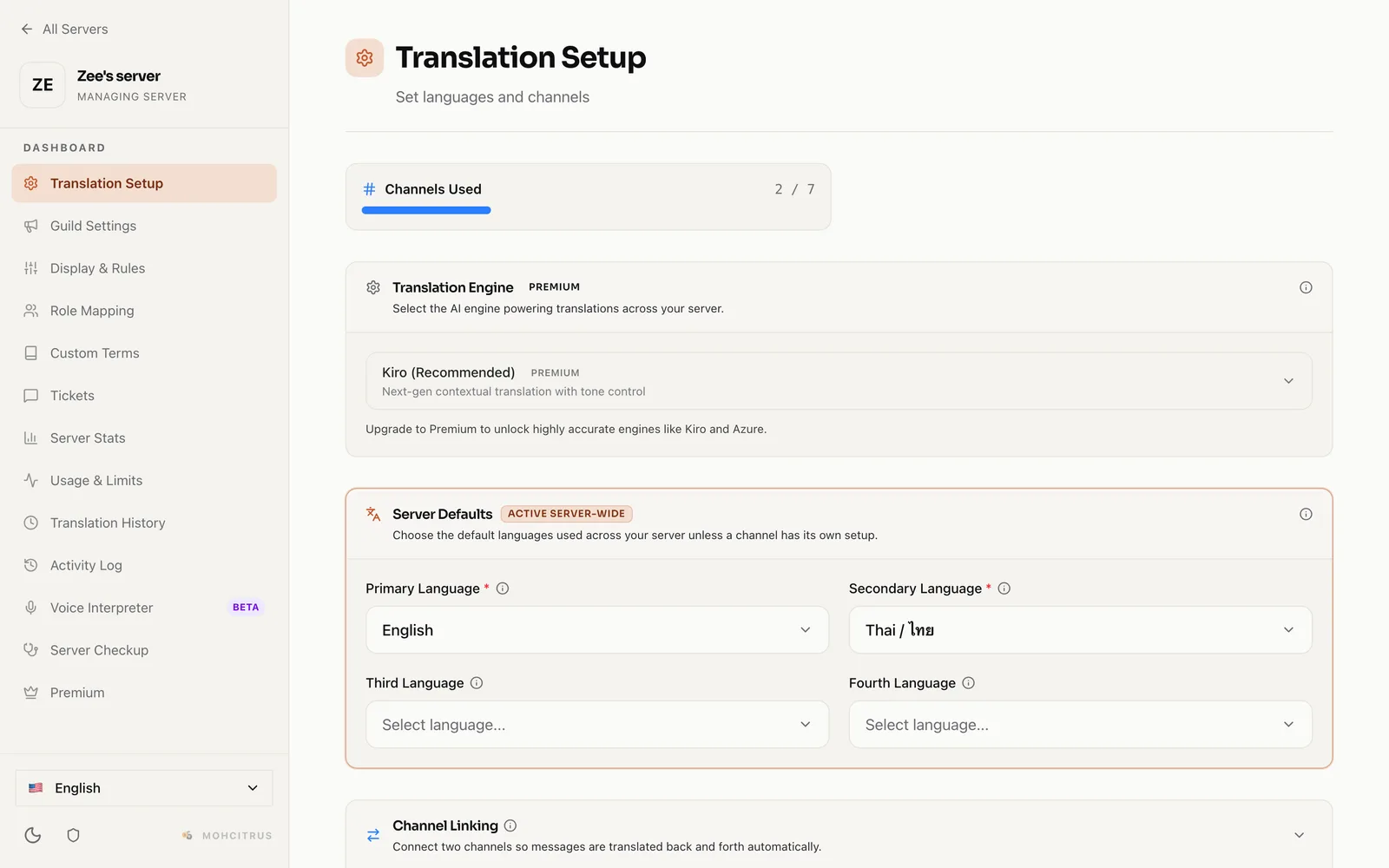
Type /setup. It walks you through choosing a channel — or your whole server — and 2 to 4 languages to translate between.
Type !es good morning in any channel. MohCitrus replies with the Spanish translation.
Type /help to browse everything MohCitrus can do.
Stuck on something specific? Ask it in plain words, and it answers using your server’s real setup:
/help question:“why does it translate every message?”If you’re a server admin and it spots the cause, it can offer to fix it for you. Nothing changes until you press Apply, and you can undo it for 10 minutes afterwards.
Open the This Server page inside /help to see how MohCitrus is set up in your server and anything worth changing. Everyone can view it — you don’t need to be an admin.
You can add MohCitrus to your own Discord account, not only to a server. Open the invite link and choose Add to My Apps.
You can then use /translate, Peek Translate and the other right-click tools in any server or DM — even ones where MohCitrus isn’t installed.
Turn on auto-translate in a channel and every message posted there is translated into the languages you pick.
/autotranslate.Run /autotranslate again in the same channel to turn it off. You can also manage every channel from the dashboard, or translate your whole server at once with /setup.
Tip: each language you add is one more reply per message. Most servers pick one or two channels and two or three languages. Short messages like “lol” and “ok” are skipped automatically.
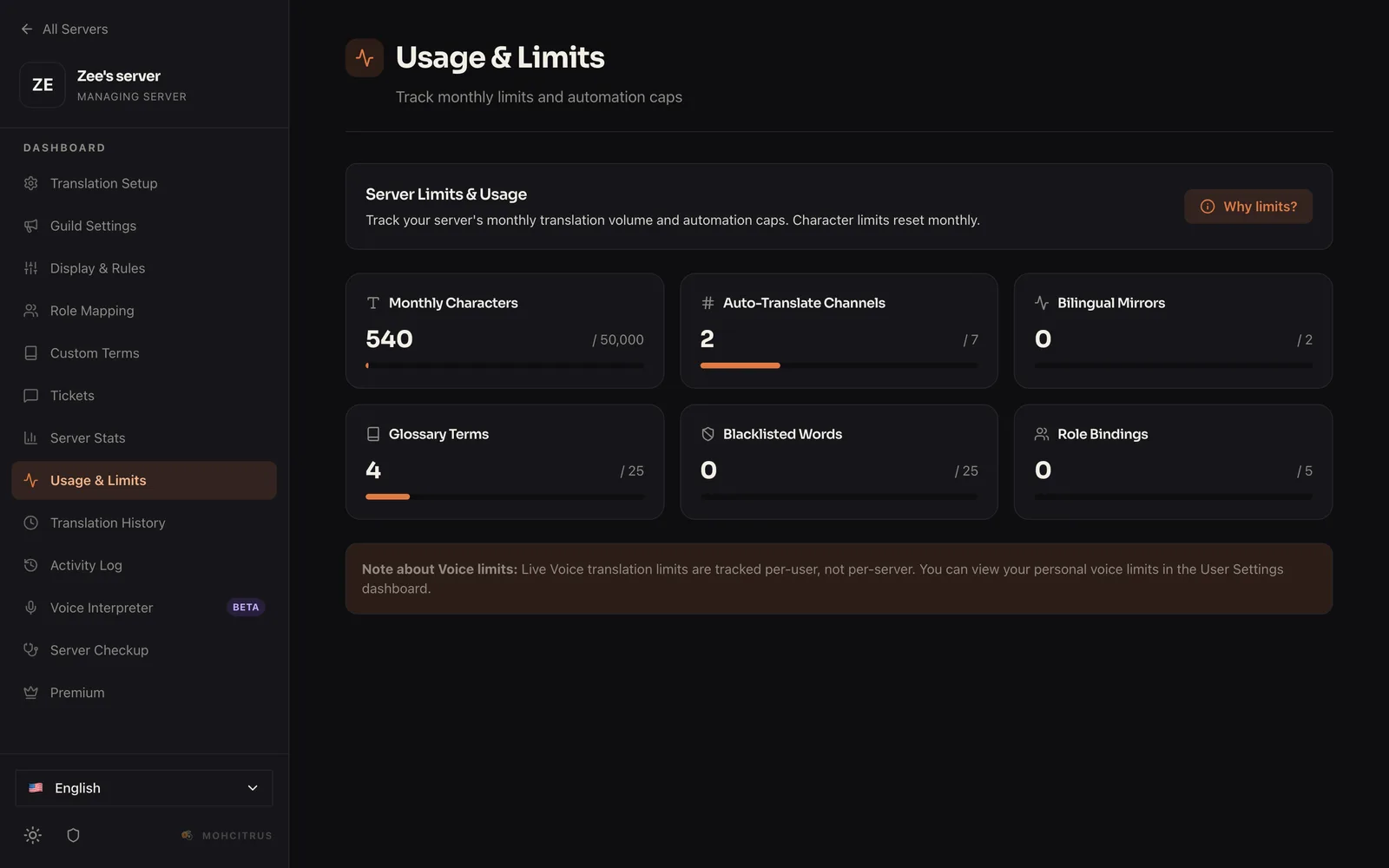
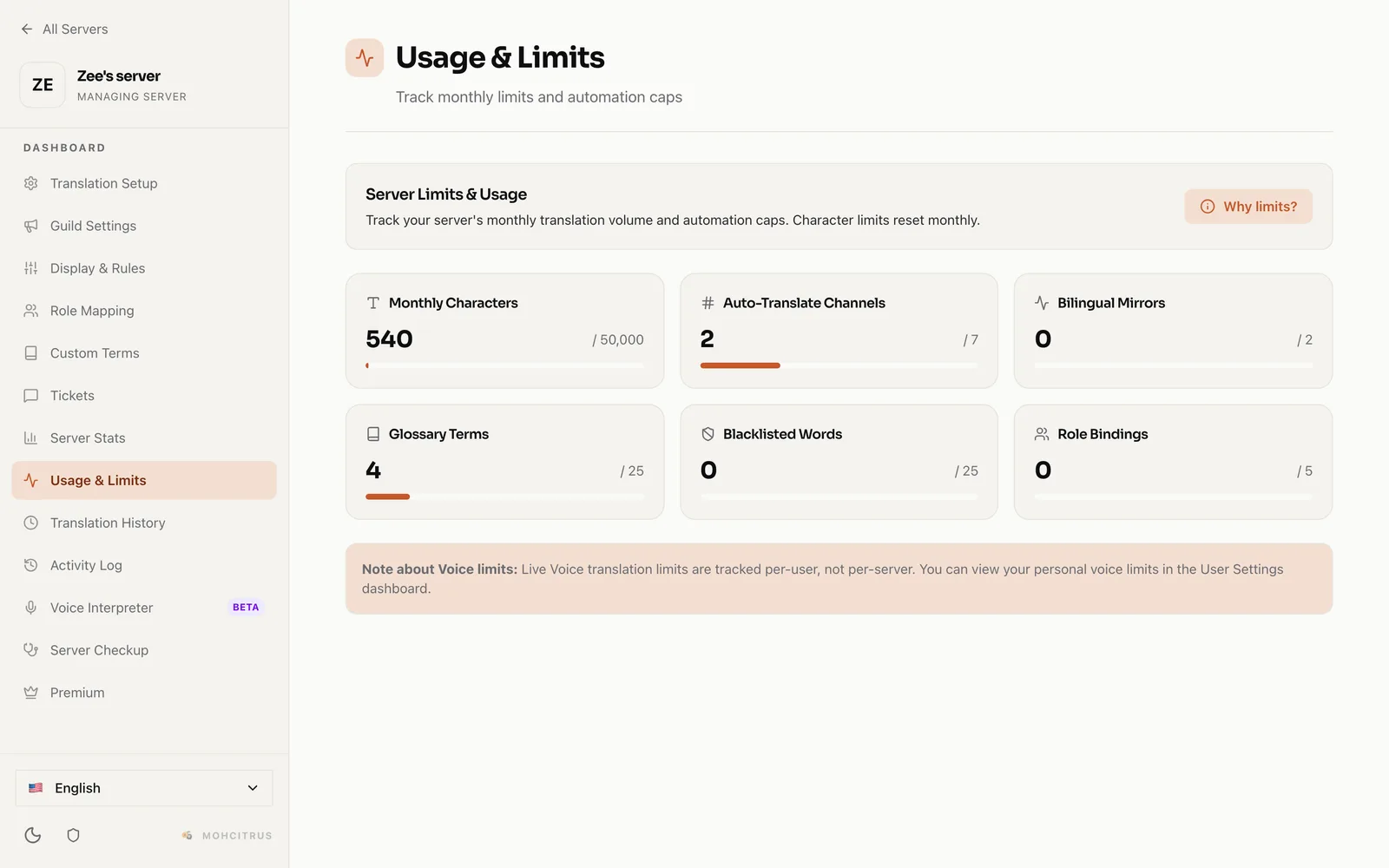
Free plan: up to 4 auto-translate channels and 50,000 translated characters a month. The monthly allowance resets on the 1st. Pro removes both limits.
In the dashboard, open Auto Channels, edit a channel, and choose a channel under Forward To.
Linked channels (sometimes called bilingual mirrors) connect two channels, such as #english and #spanish. A message posted in one appears translated in the other, under the sender’s own name and picture, so each group can chat in its own language.
Set them up in the dashboard under Channel Linking: choose two channels and a language for each.
When someone replies to a message from the other channel, MohCitrus shows a short quote of the message they’re replying to — Discord’s reply arrow can’t point across channels, so this keeps conversations easy to follow.
Free plan: up to 2 linked channel pairs. Pro removes the limit.
React to any message with a country flag, like 🇪🇸 or 🇯🇵, and MohCitrus translates it into that country’s language.
By default the translation is sent to you privately in a DM. Server admins can make flag translations appear in the channel instead, in /settings.
Prefer to choose from a list? Use /flagtranslate.
Type some text and choose a language. You don’t need to say what language it’s in — MohCitrus works that out.
| Option | Required | What it does |
|---|---|---|
language | Yes | The language to translate into. |
text | Yes | What you want translated. |
language_2, language_3 | No | Translate into up to three languages at once. |
private | No | Only you see the result. |
/translate language:“Japanese” text:“See you tomorrow!” language_2:“Spanish”
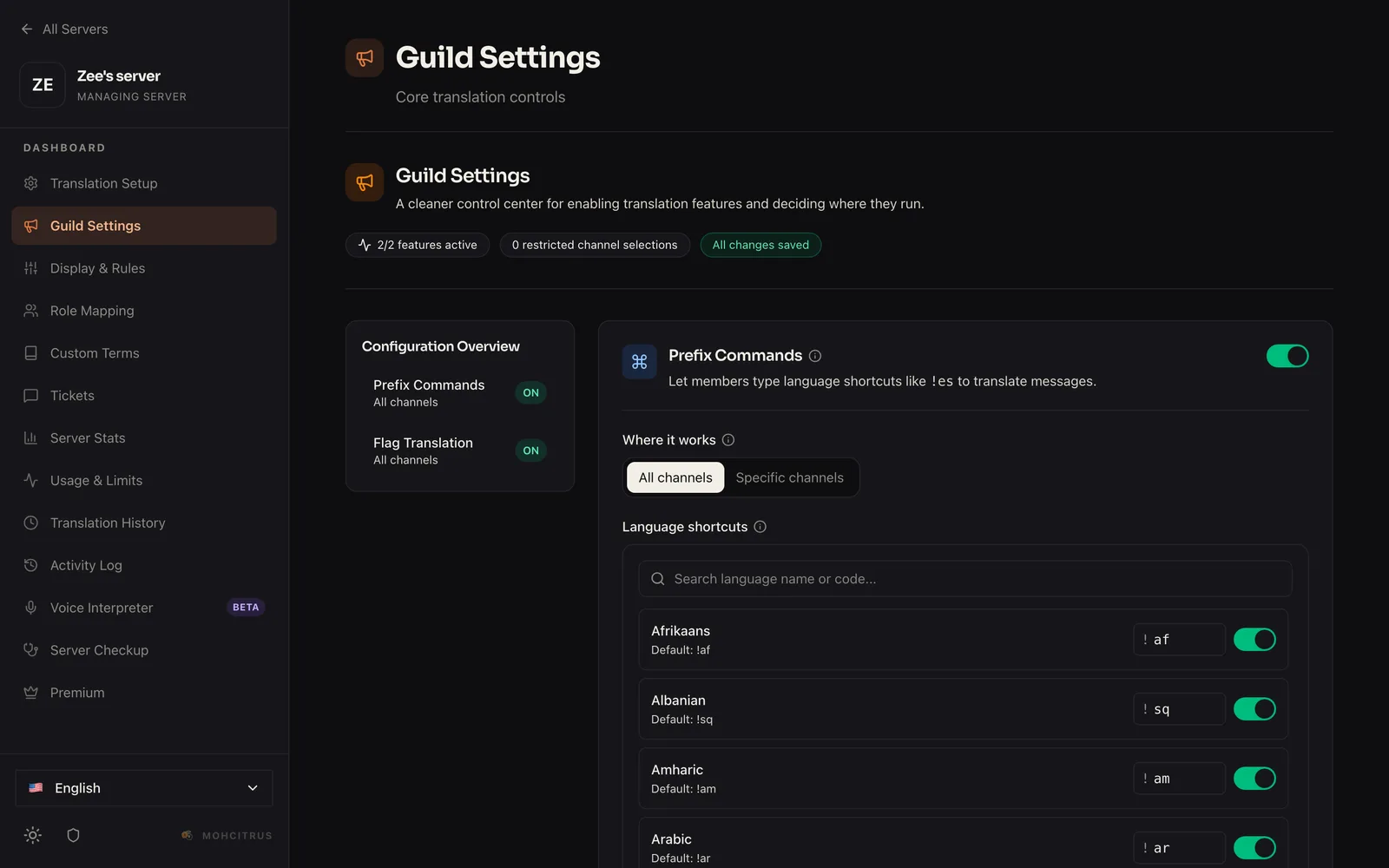
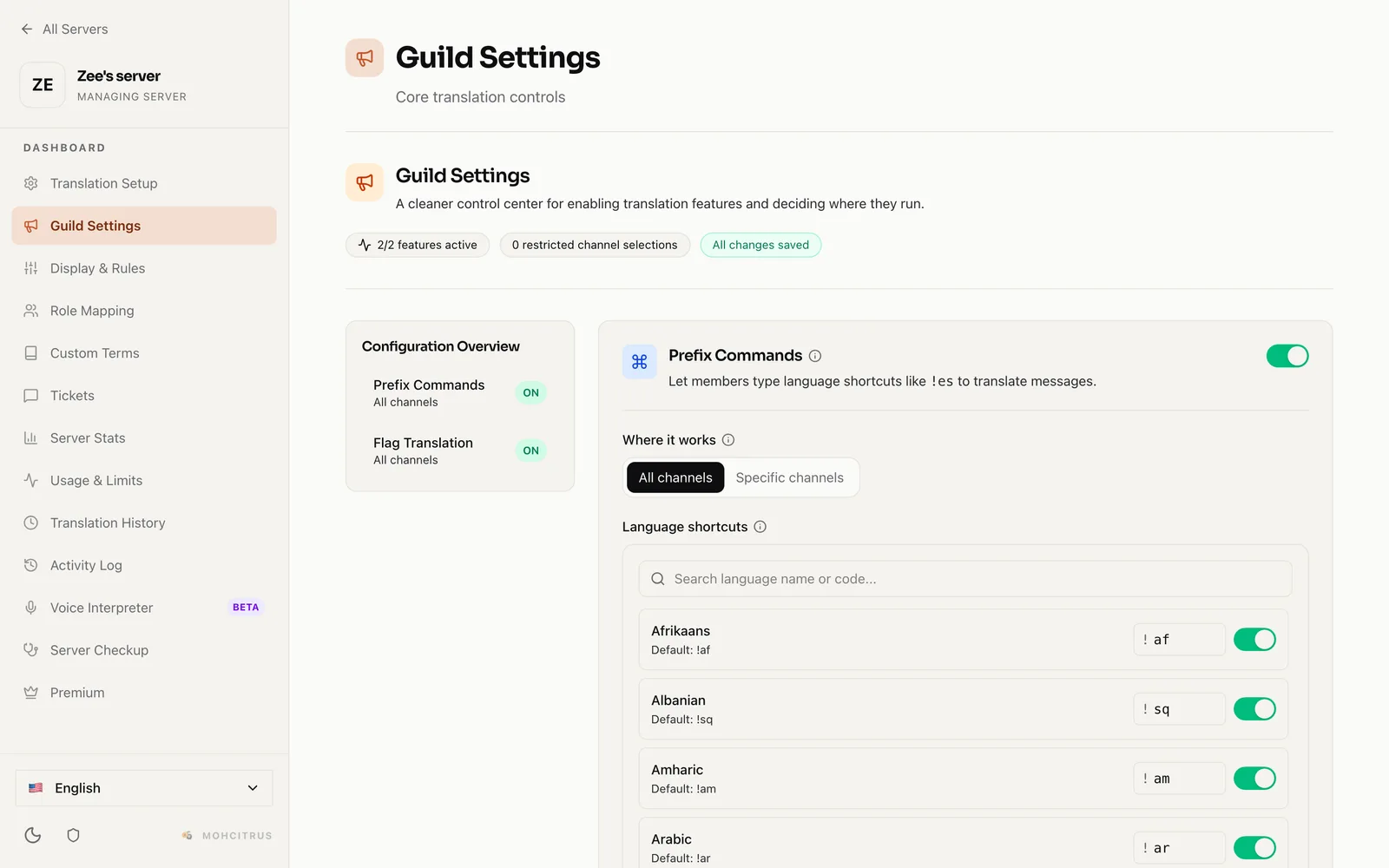
Put a language code with an exclamation mark in front of your message, like !es good morning or !ja thank you, and MohCitrus replies with the translation.
!es Hello!esHello — leave a space after the code.Admins can switch shortcuts off, or rename them (for example !hindi instead of !hi) under General Settings in the dashboard — handy if they clash with another bot.
Translate the text inside a screenshot, poster or meme.
| Option | Required | What it does |
|---|---|---|
language | Yes | The language to translate into. |
image | One of these | Upload the image. |
image_url | One of these | Or paste a link to it. |
private | No | Only you see the result. On by default. |
Right-click a message (on mobile, press and hold it), open Apps, and choose a tool. Results are private — only you can see them.
| Tool | What it does |
|---|---|
| Peek Translate | Translates the message into your Discord language. |
| Translate My Draft | Helps you write a reply in another language before you send it. |
| Explain with Gemini | Explains slang, jokes and idioms that don’t translate literally. |
| How do you say this? | Shows how to pronounce a word. |
| TL;DR (Summarize) | Sums up a long message in English. Personal Premium. |
| Translate Voice Message | See Voice, below. |
| Reply With Voice | See Voice, below. |
| Translate for Mods | For moderators — see Moderation Translation. |
| Feature | How to use it |
|---|---|
| Translate Voice Message | Right-click a voice note → Apps → Translate Voice Message, then choose text or a spoken version. |
| Reply With Voice | Right-click a text message → Apps → Reply With Voice to hear it spoken in your language. |
| /interpreter | Joins your voice channel and translates what people say out loud, and posts the text in chat. One session per server at a time. |
Voice clips can be up to 90 seconds. Pro servers have unlimited voice translations; free servers get 3 per person per day, and DMs get 10 per person per day. Voice results are private to the person who asked.
| Command | What it does |
|---|---|
/detectlanguage | Tells you what language some text is in. |
/pronounce | Pronunciation from the Merriam-Webster dictionary. |
/stats | How much your server has translated. |
/status | Your server’s auto-translate setup (admins). |
/premium | Your server’s plan and how to upgrade. |
/profile | Your own translation stats and plan. |
/feedback | Send us a suggestion or report a problem. |
/invite | Get the link to add MohCitrus to a server. |
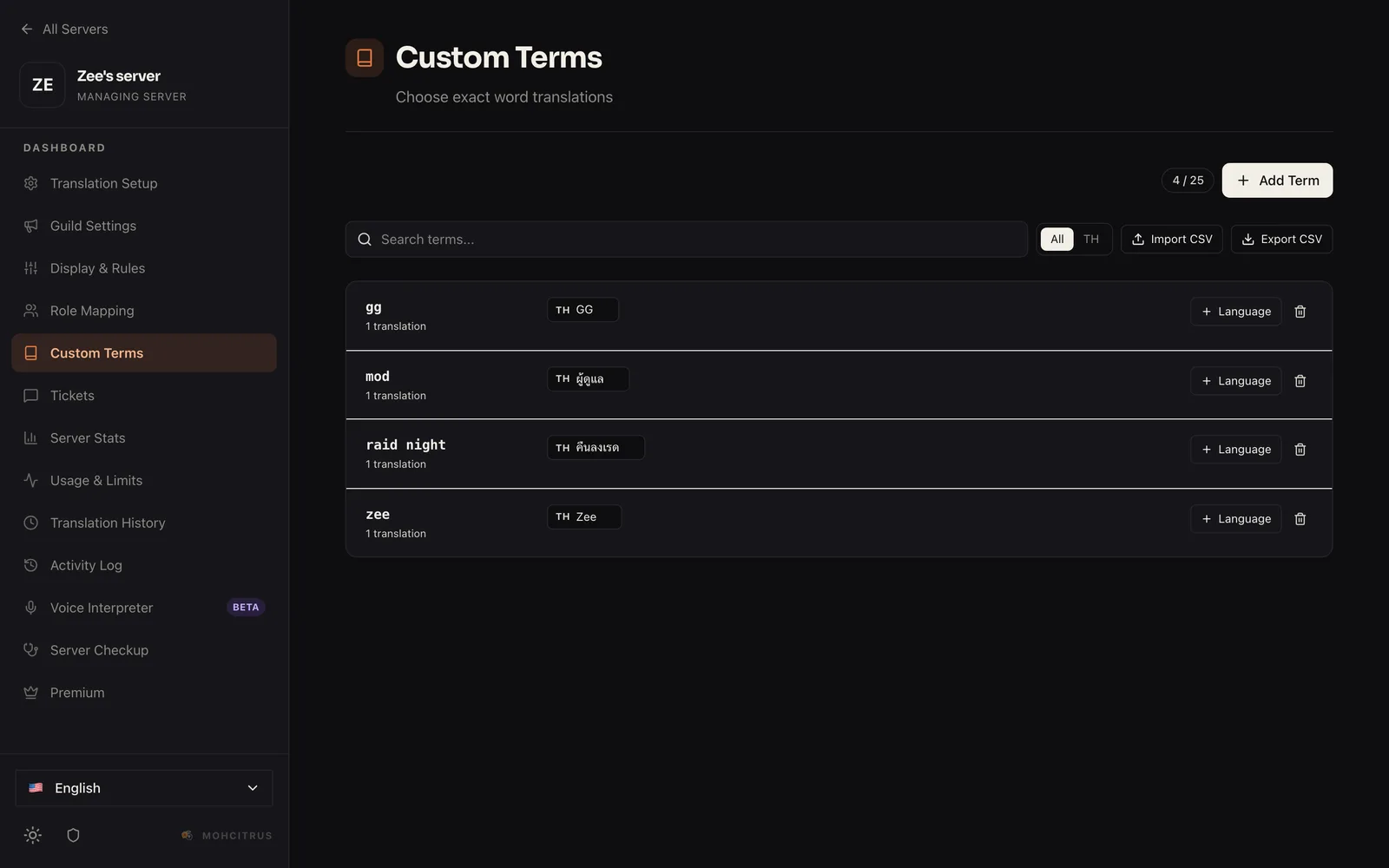
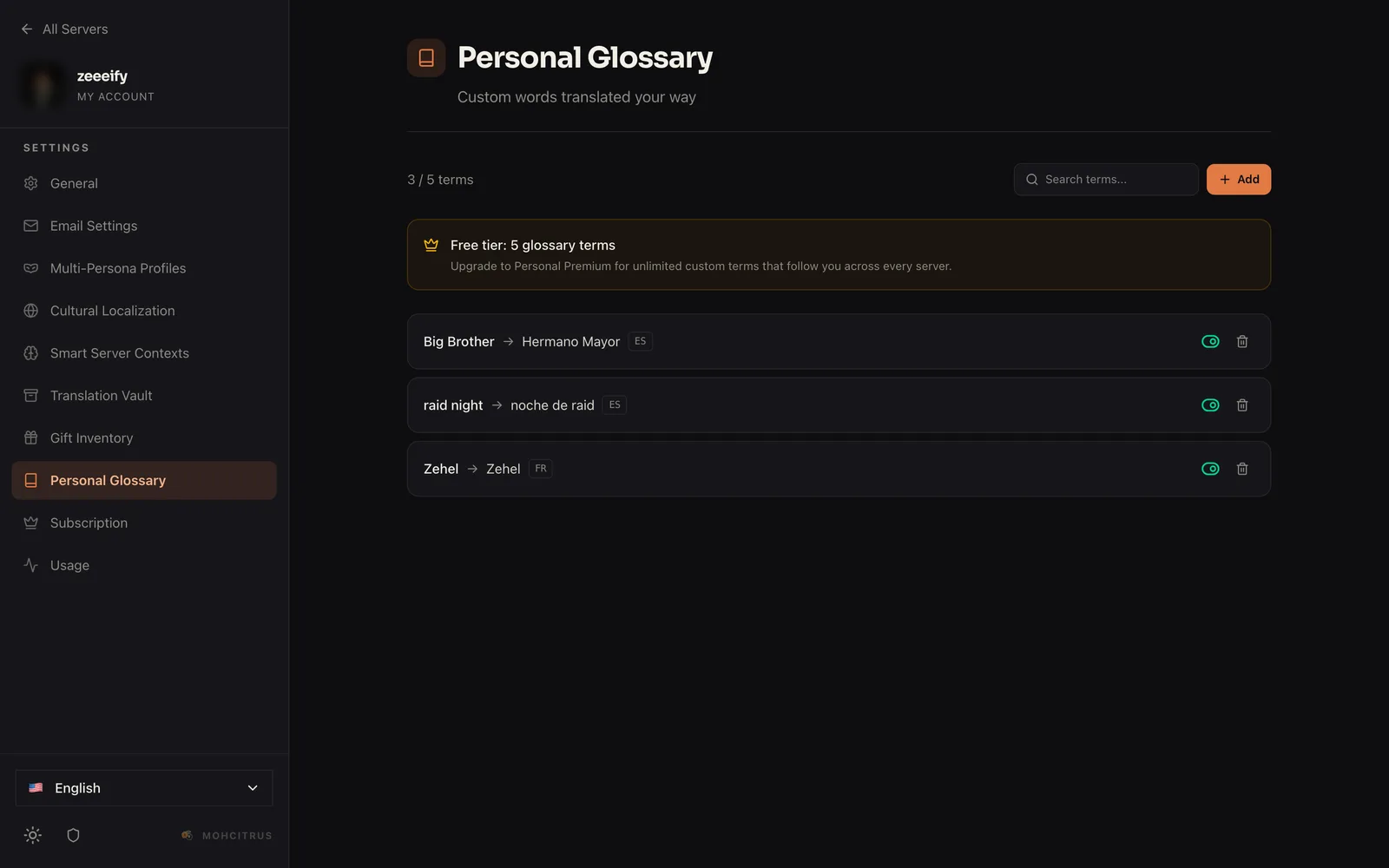
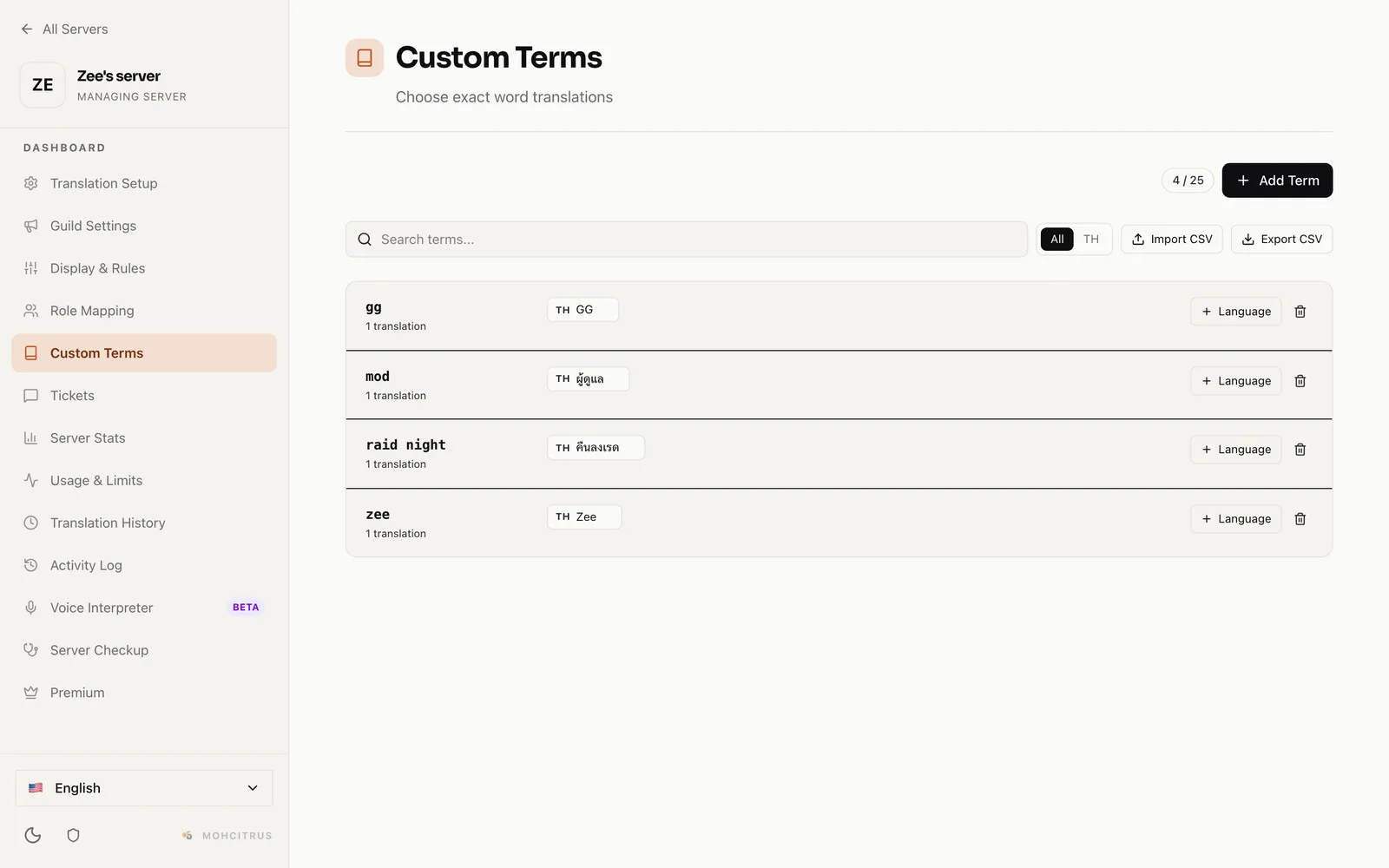
Some words shouldn’t be translated literally — game terms, nicknames, your server’s in-jokes. Add them to the glossary and MohCitrus uses your version every time.
/glossary add term:“Smurf” language:“ES” translation:“Cuenta Alternativa”You can view and edit the glossary in the dashboard too.
Free plan: up to 25 glossary terms. Pro removes the limit.
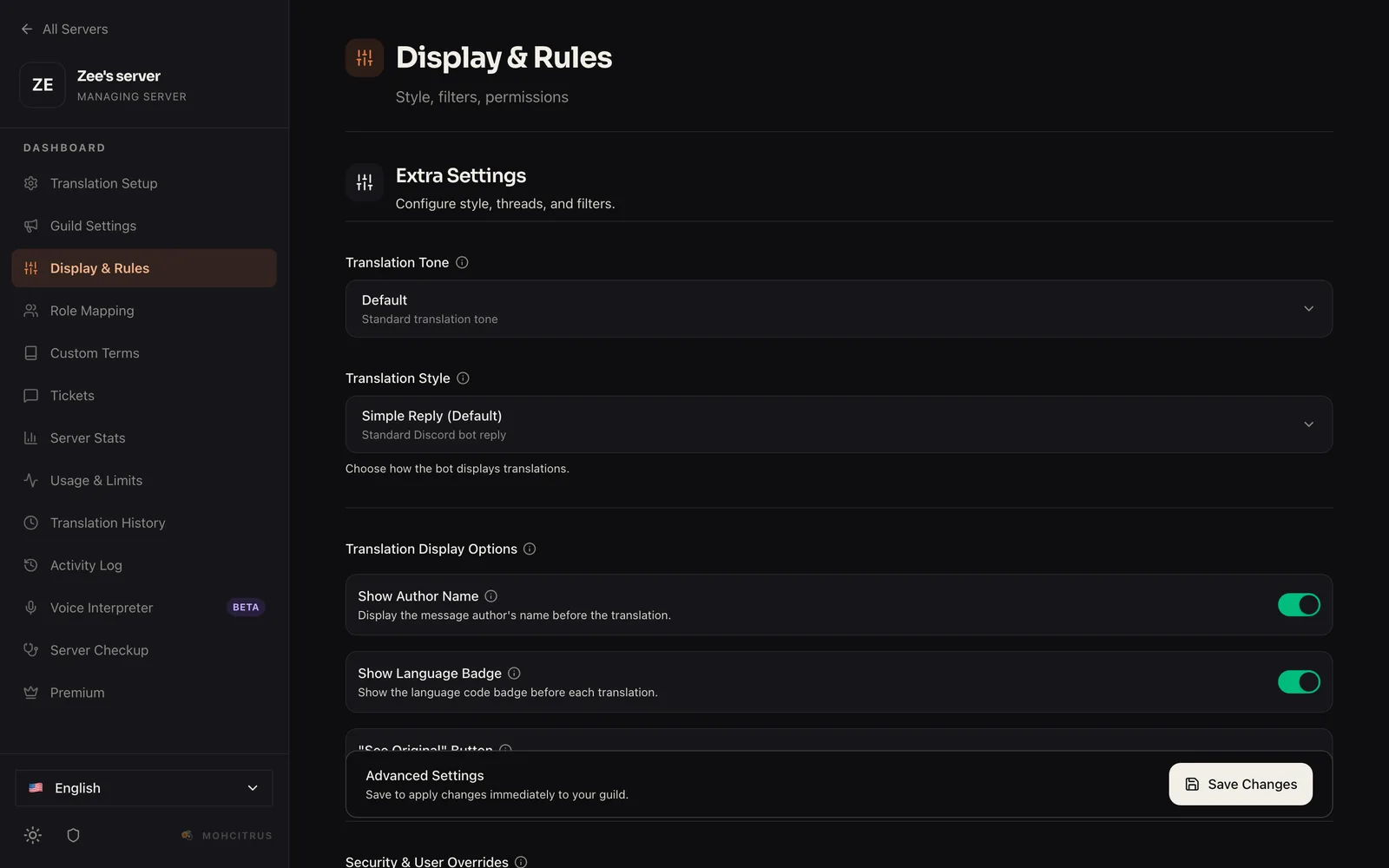
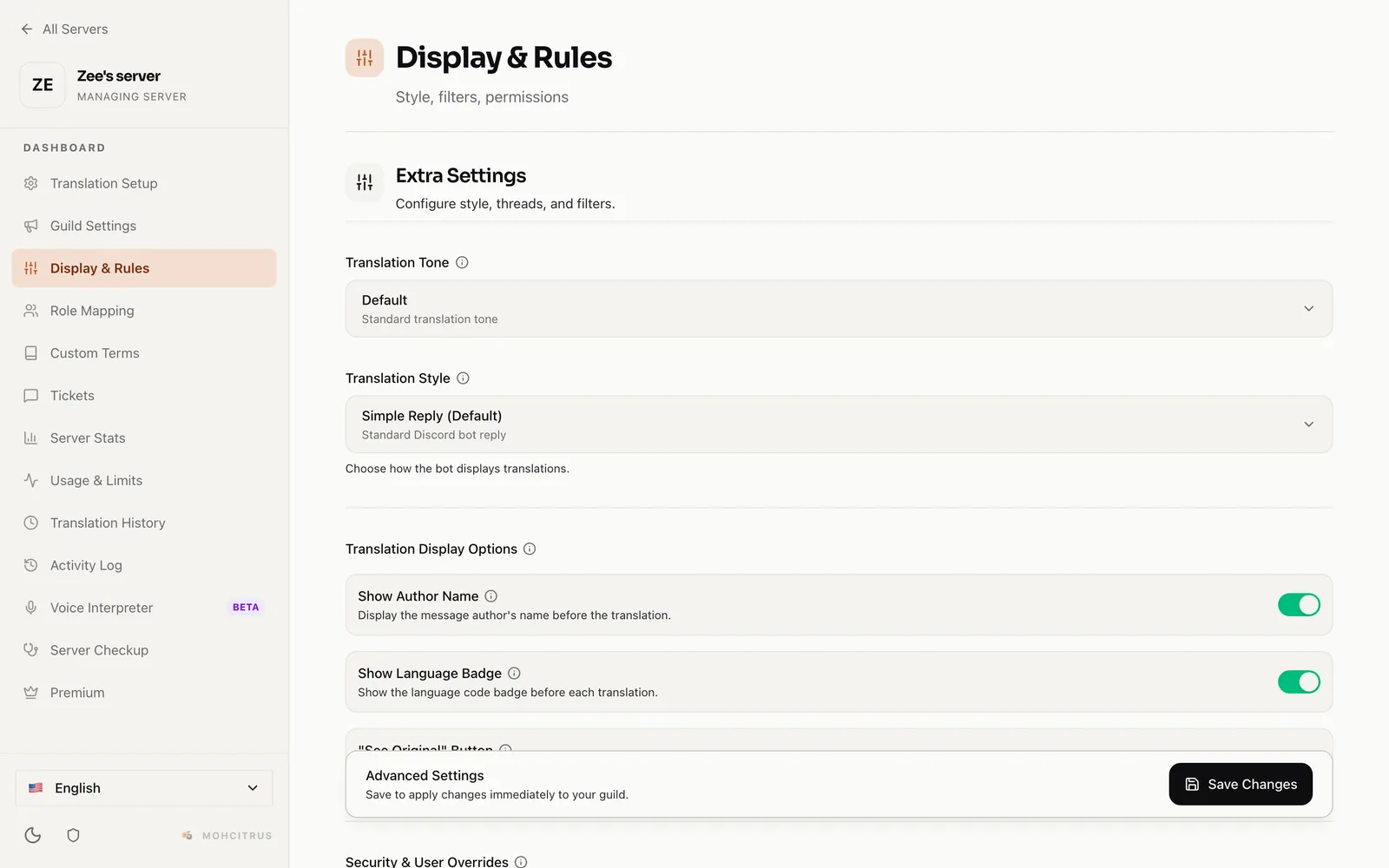
Change most of these with /settings, and all of them in the dashboard.
| Setting | What it does |
|---|---|
| Translation style | Show translations as a reply, an embed, or under the sender’s own name and picture. |
| Tone | Keep translations neutral, or make them formal, casual, or your own custom style. Anything other than neutral is Pro. |
| See Original button | Adds a button so people can view the untranslated message. |
| Short-message filter | Skips messages like “lol” and “ok”. On by default. |
| Blocked words | Messages containing these words are never translated. Free: up to 25. |
| Allowed roles | Only translate messages from members with certain roles. |
| Role languages | Give a role a language, and members with it get an extra translation in that language. Free: up to 5. |
Help your moderators handle messages in languages they don’t speak.
Right-click a message → Apps → Translate for Mods. You’ll privately see the translation, the language it was written in, and a link back to the message. You need the Manage Messages permission.
/modtranslate setup.Use /modtranslate status to check the setup and /modtranslate disable to turn alerts off.
MohCitrus needs the Manage Server permission to receive AutoMod alerts — Discord doesn’t send them otherwise. Moderation translation works on every plan and is never stopped by the monthly limit.
Manage MohCitrus from your browser instead of Discord commands. Click Dashboard at the top of this site, log in with Discord, and choose a server. You need the Manage Server permission in that server.
From there you can manage auto-translate channels, linked channels, the glossary, every setting, and see how much you’ve used this month.
Found a bug or have a billing question? Open a ticket from the Tickets tab in the dashboard. You can have one open ticket at a time and attach up to 5 files — images, video, audio or PDF.
For quick suggestions, use /feedback, or come and talk to us in our community Discord (link at the top of this page).
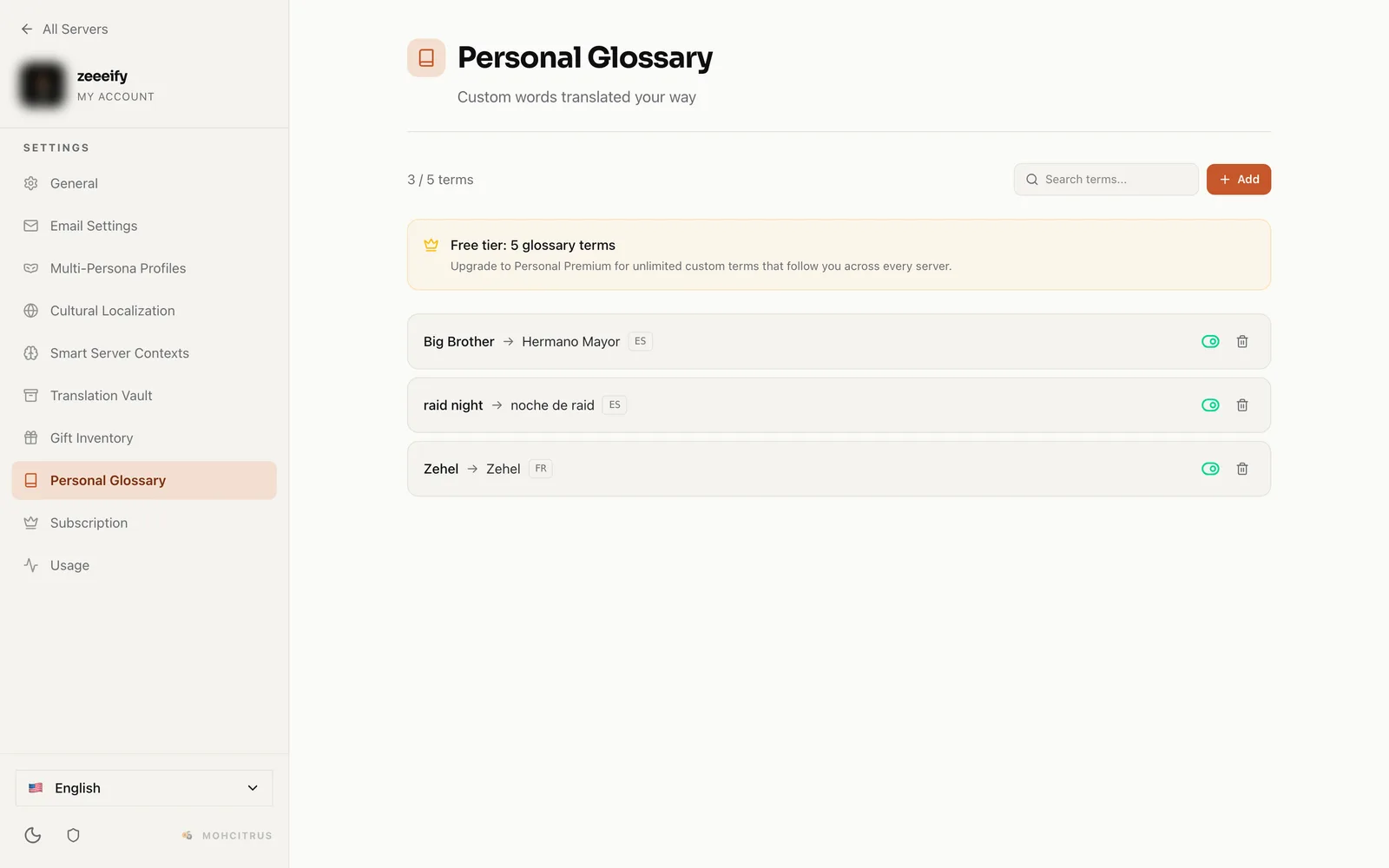
These are yours, not your server’s — they follow you everywhere MohCitrus translates your messages.
| Command | What it does |
|---|---|
/preferences | Choose your tone and how your messages are translated. |
/persona | Switch between saved translation styles. Personal Premium. |
/myglossary | Your own glossary: always translate a word your way, in the language you choose. Free: 5 terms. Personal Premium: unlimited. |
/profile | Your translation stats and plan. |
You can change all of these in your browser too: open the dashboard and choose My Account.
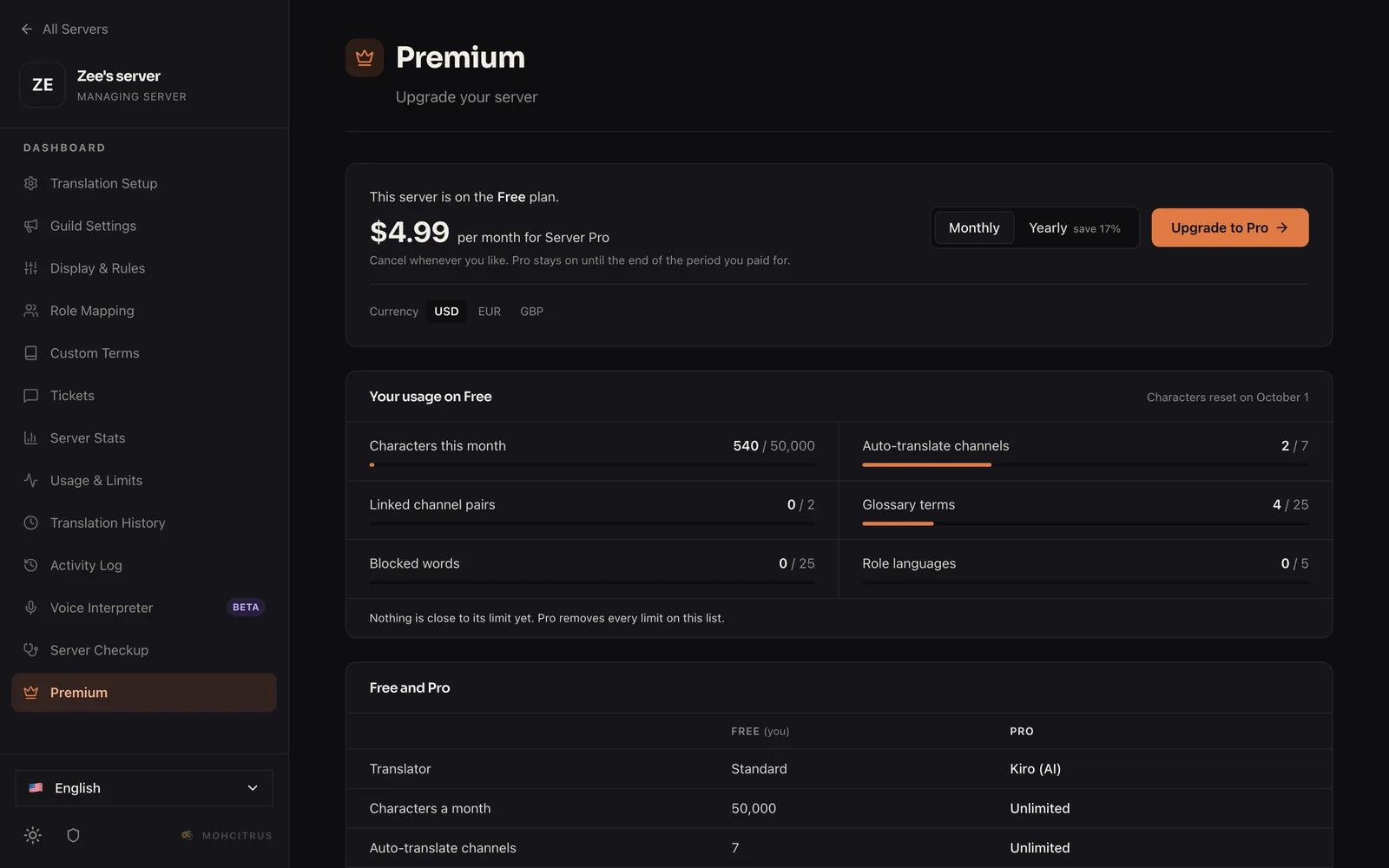
MohCitrus is free to use. Pro removes the limits and upgrades translation quality for everyone in your server.
| Free | Pro | |
|---|---|---|
| Translated characters | 50,000 a month | Unlimited |
| Auto-translate channels | 4 | Unlimited |
| Linked channel pairs | 2 | Unlimited |
| Server glossary terms | 25 | Unlimited |
| Blocked words | 25 | Unlimited |
| Role languages | 5 | Unlimited |
| Tone | Neutral | Formal, casual and custom |
| Voice translations | 3 per person a day | Unlimited |
| Translation engine | Standard | Kiro, our AI translator |
Kiro understands the conversation a message is part of, so replies, slang and names come out right more often. If it’s ever unavailable, Pro falls back to DeepL and Azure automatically.
| Plan | Price | Who it’s for |
|---|---|---|
| Server Pro | $4.99/month or $49.99/year | Everyone in one server gets Pro. |
| Personal Premium | $3.99/month or $39.99/year | Just you, in every server and DM: Kiro for your own translations, an unlimited personal glossary, personas and TL;DR. |
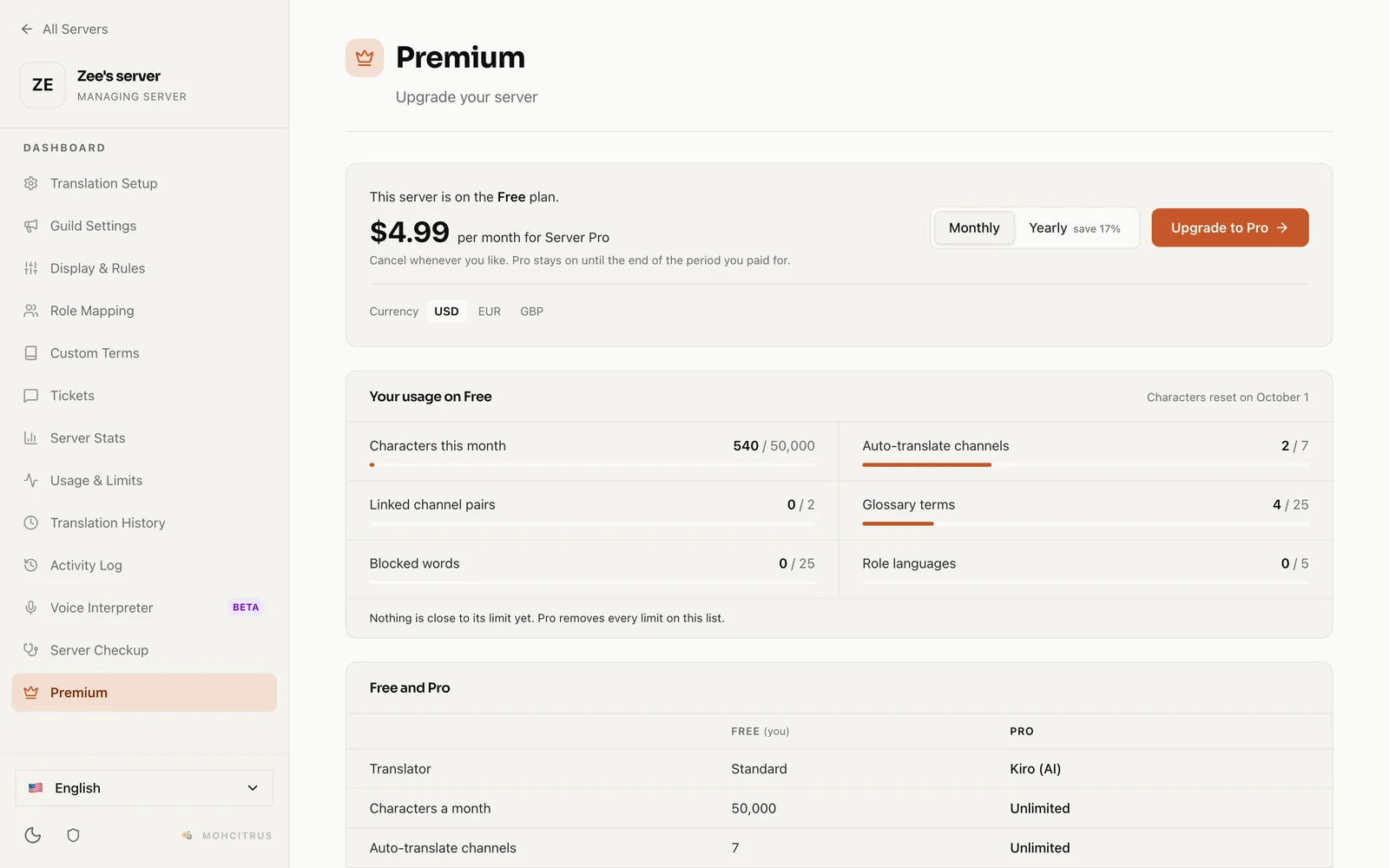
Prices are shown in US dollars; euro and pound prices are available at checkout.
MohCitrus supports 108 languages and regional variants. You can type a language’s code (ES) or its name (Spanish) — both work.